1. Graphical Component Navigation User Guide (G4674221)
This is an overview of the benefits of using Graphical Component Navigation.
Graphical Component Navigation will show the component location. They are contained within TOPIx Workflow, this will assist you when manual selecting a root cause component.
Key Features
- Component Location
- Hotspot Description(s)
- Selectable component
- Root Cause updated automatically
- Select Condition Code
- Complete Step (as Normal)
- Continue Workflow from step 4
- Enter a Vehicle Identification Number (VIN) (from the vehicle home page) .
- From the OPTION SELECTION box select Fault and Breakdown.
- Workflow elect Diagnose a Fault or resume a previous workflow from History Ongoing
- Diagnose a Fault or resume a previous workflow from History Ongoing
- SEARCH FOR SYMPTOMS
- For this example we have used the following:
- Chassis – Power Steering – Vehicle Noise / Vibration When Turning
- Root Cause – Graphical Component Navigation:
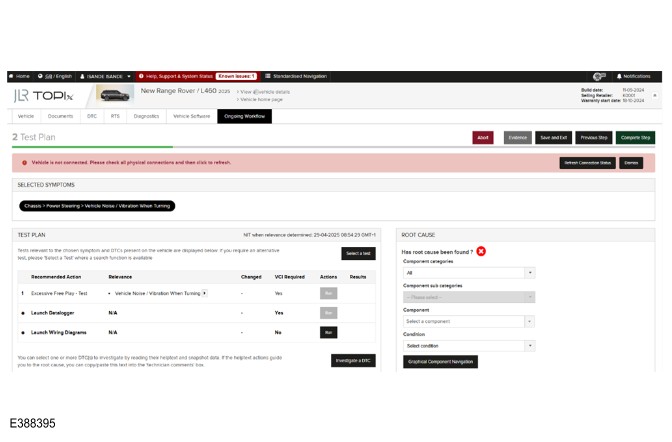
- Select Graphical Component Navigation
- A pop-up window will open
- In this example Active Stabilization System - 1
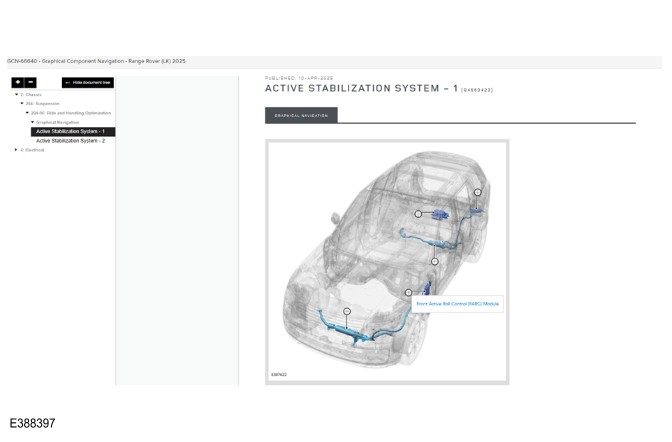
- This displays a transparent image of the vehicle, and the target component(s) will be shown in blue.
- The illustration also contains Hotspot text(s) each one giving high level component(s) information
- In this example Front Active Roll Control Module (FARC)
- Select the component
- This will automatically populate the Component within Root Cause
- The pop-up window will now close automatically
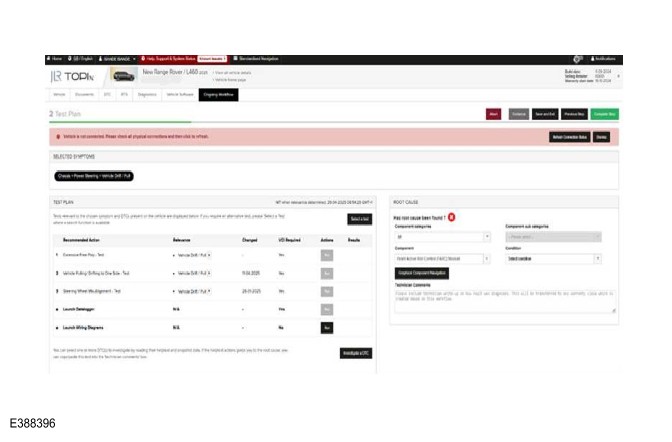
- Select the required Condition (In this example JUDDER).
- Enter the required Technician Comments
- Select Complete Step
- Continue the workflow from step 4 Repair Selection
- Root Cause
- Select a repair
- For this example FARC (Removal and Installation)